20+ ways to segment your emails to boost your marketing efforts
By Sean Tinney July 20, 2023
Inboxes are constantly bombarded with emails vying for attention, it’s becoming increasingly challenging to make your message stand out.
We’ve all been there, scrolling through countless generic emails that barely resonate with our interests. But what if there was a way to break through the noise and deliver emails that feel like they were crafted specifically for us?
That’s where the power of email segmentation comes in. By understanding the unique needs and preferences of your subscribers and tailoring your messages accordingly, you can create a truly personalized experience that captivates and engages.
Just look at your inbox and you’ll find segmented emails everywhere. YouTube and Netflix suggest videos or shows based on your past viewing behavior. Amazon suggests products related to past purchases, searches, or products in your cart.
So it’s time to learn how to leave a lasting impression on your audience.
In this blog we’ll talk about:
- What is segmentation
- The benefits of email segmentation
- Types of email segmentation
What is email segmentation?
Email segmentation is the process of separating your subscriber list into smaller, organized subgroups based on their interests, behaviors or characteristics. Essentially, email segmentation is the act of taking a list and filtering and sorting your subscribers into relevant groups.
There are hundreds of ways to segment your audience, and they can all help you better target your email sends, which can lead to higher engagement.
The benefits of email segmentation
Sending targeted content is the best way to get subscribers engaged with your brand. That’s because people are more likely to respond to messaging that is relevant to their needs and interests.
It can also help you build trust with your subscribers. They’re more likely to stick around if they feel you truly understand them.
When you segment your emails, you could see:
- Higher open rates
- Higher click-through rates
- Higher deliverability rates
- Higher conversion rates
Plus, proper targeting can help you drive 3x more revenue per email. Even though you may be sending to a smaller group of people than you would be without segmenting, you are able to focus your messaging on one group of people.
Types of email segmentation
You can segment your list using any subscriber data available to you. Here are some of the most common ways to segment your emails list:
Demographics (age, hometown, location, job, gender)
Segmenting your email list based on demographics is an effective way to personalize your communication and tailor your content to specific groups of subscribers.
By collecting demographic information during the sign-up process, such as age, gender, location, or occupation, you can gain valuable insights into your audience. This data enables you to create segments that reflect the unique characteristics of each group and deliver highly targeted emails that resonate with their interests and preferences.
Geographic locations
Run events in different locations? Have an ecommerce shop with a global customer base?
By segmenting subscribers based on their geographic location, you can send targeted emails with content, like upcoming events near them and exclusive discounts for local holidays or seasons. Or share advice and news that would be more relevant to that particular audience.
Survey results
To create effective email segments, you first need to know your subscribers. The more data you’re able to collect, the better you can target them.
Start by asking questions during your welcome series. Set up an automated campaign to trigger anytime a new subscriber joins your list. Include some questions with multiple choice answers that readers can easily click. Tag subscribers based on their answers. Voila!
Asking questions in a welcome series lets you collect information you need without asking for too much up in a sign up form.
Email engagement – Clicks
Segment subscribers based on a specific link they clicked in a previous email.
You can then send a targeted email to those tagged subscribers for specific products they might be interested in, or you can enter them into a new automated campaign.
Email engagement – Opens
Similar to clicks, you can segment based subscribers who open an email within a specific timeframe.
Now you can create targeted campaigns to nurture based on the type of emails they opened. Or you can send more emails to segments of subscribers who open more frequently.
On the other hand, inactive subscribers who rarely open your emails present an opportunity for re-engagement through specialized campaigns.
Inactivity
People sign up to your email list for all sorts of reasons, so it’s normal that some become inactive over time. But when you continue to send emails to unengaged subscribers, you’re only hurting your email performance and deliverability.
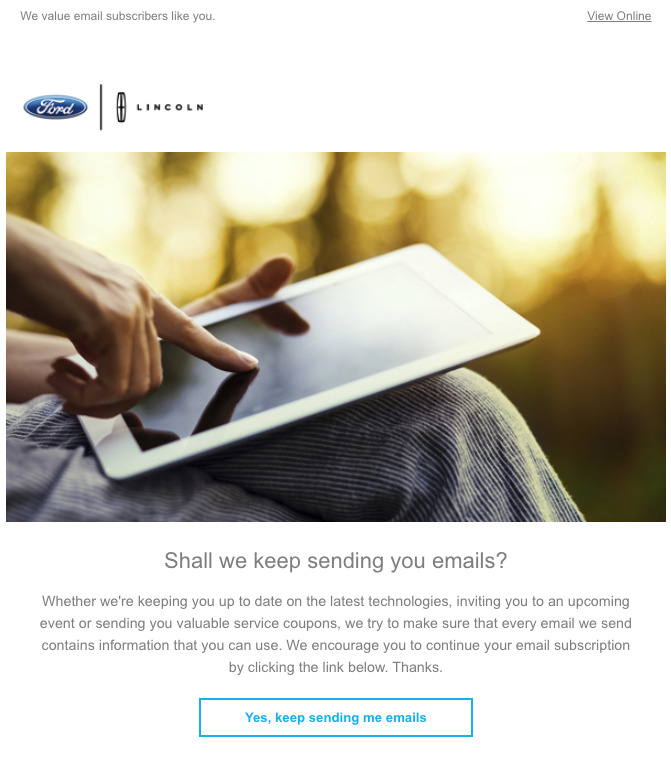
If you have subscribers who haven’t engaged with your emails in a long time, try to win them back with a re-engagement campaign.
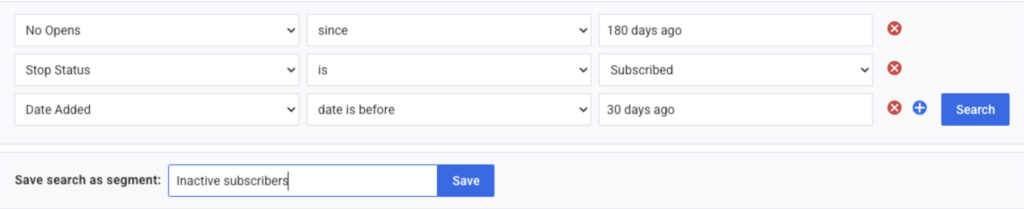
In your email, explain what they’re missing out on and offer exclusive discounts and incentives to get them to take action. If they click the incentive, keep them on your email list. And if they don’t, simply unsubscribe or remove them. A smaller, more engaged list is generally better than a larger, unengaged list.
Here’s an example of a re-engagement email from Ford.
Purchase history
Sometimes the best way to get to know your subscribers is through their actions. So try segmenting subscribers based on purchase history.
By segmenting based on the products your customers have purchased, you’re able to tailor your emails to send promotional emails to upsell or cross-sell related, and encourage repeat sales.
Purchase amounts
Want to connect with your high-value customers? Create a segment of customers who have purchased your highest-value products. You can offer them VIP perks, like special discounts, sneak previews or more.
Use AWeber’s sales tracking feature to track who makes a purchase after clicking a link to your product or service in your email. Then create a segment of customers who purchased a product with a minimum purchase price or within a price range.
Purchase frequency
By analyzing how often customers make purchases, you can identify segments such as frequent buyers, occasional shoppers, and inactive customers.
For your frequent buyers, you can create loyalty programs, exclusive discounts, or early access to new products, rewarding their continued support.
Occasional shoppers may benefit from targeted promotions to encourage more frequent purchases, while inactive customers can be re-engaged with personalized win-back campaigns featuring enticing incentives.
Website behavior
Create segments of subscribers who have visited or not visited specific pages on your site, and send tailored broadcasts or trigger campaigns to those subscribers.
Want to learn why subscribers aren’t making it through the sales funnel? Create a segment of subscribers who visit the first page of your funnel, but not the next one. Send them a broadcast or trigger an automated campaign to invite feedback to learn what stopped them from progressing.
Want to tailor your emails based on the pages your subscribers visit on your website? Use AWeber’s event tracking feature to track subscribers’ activity on your website and automatically tag them based on the pages they have visited.
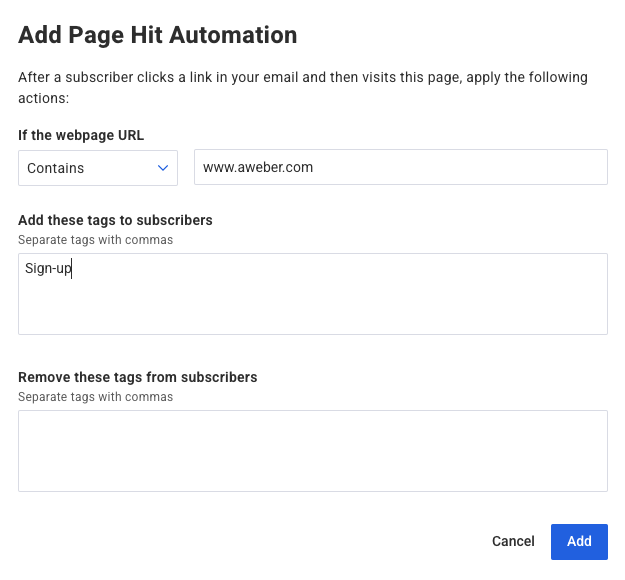
Pro tip: If you’re using AWeber’s landing pages, event tracking is built in.
Visitors who did not purchase
Perhaps someone clicked a link in your email to check out your product or service, but didn’t make the purchase.
Create a segment of these subscribers and send them an email asking for feedback on their experience.
Was there something about the product or service they didn’t like?
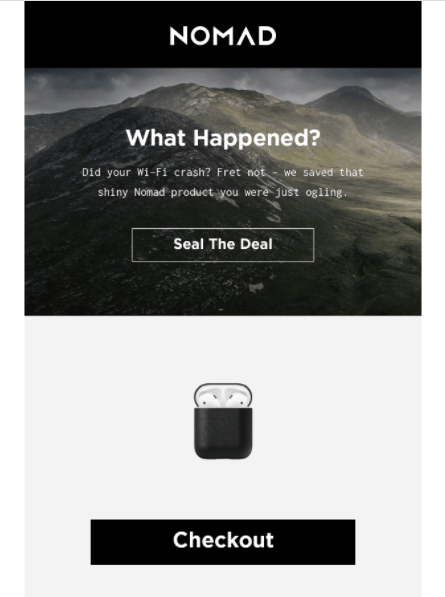
Abandoned shopping cart
Create a segment of subscribers who left something in their shopping cart. You can send an automated cart abandonment campaign to let them know they left something in their cart and encourage them to come back to complete their purchase.
Consider offering them a discount or other incentive to entice them to click through and complete their purchase.
Interests
If you send emails that cover a variety of topics, it may be helpful to learn what your subscribers are most interested in. Doing this will allow you to send targeted emails to segments who are more likely to engage with your content.
Gather this information when a subscriber signs up. Simply ask them what topics they’re interested in learning about, and tag them based on their selections. Then create segments of subscribers with those particular tags, or a combination of tags.
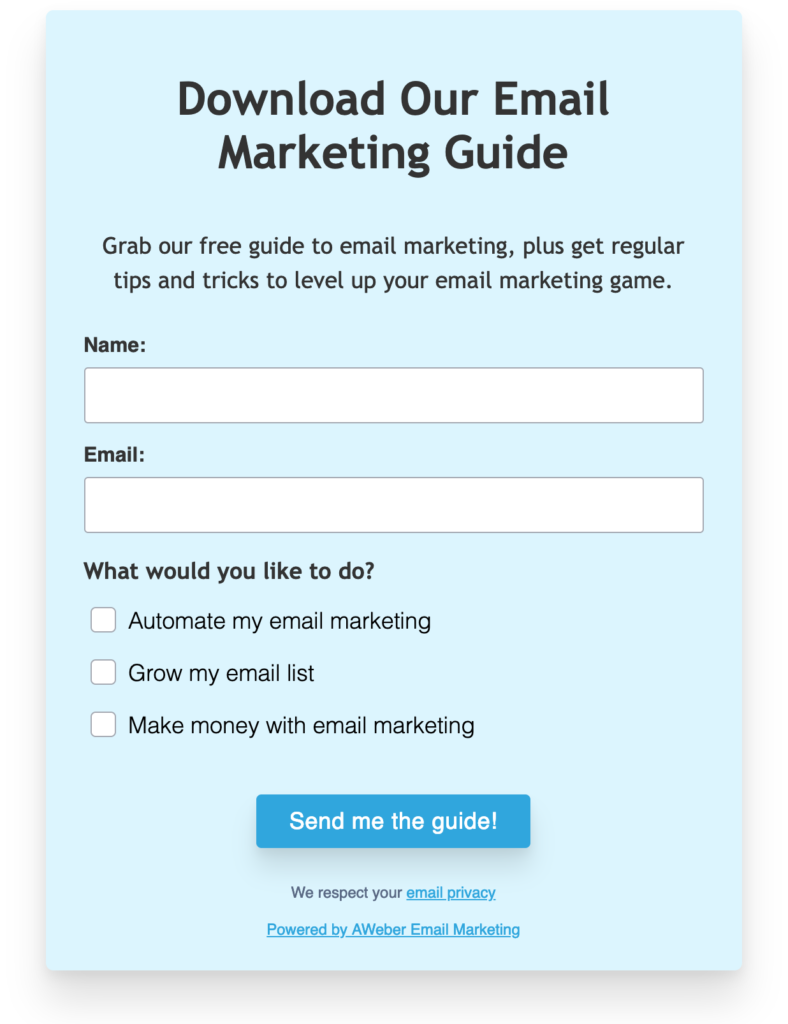
You can also gather this information when subscribers click on links in your emails. If you send out an email about a new vegan recipe, you can tag subscribers with the word “vegan” when they click the link for the recipe.
Lead source
Segmenting your email list based on lead source allows you to categorize subscribers according to how they discovered or interacted with your business.
By tracking the source of each lead, whether it’s from a website form, social media, referral, or event, you may discover one source performs better. In that case you can put more marketing dollars and effort in acquiring new subscribers from that particular source.
Lead magnet or incentive
Segmenting your email list based on lead magnets allows you to categorize subscribers according to the specific content or resources they were interested in when opting in.
By breaking these groups by which lead magnet each subscriber downloaded or accessed, you can create segments aligned with their unique interests and preferences.
This segmentation enables you to deliver targeted emails that provide further value, relevant content, or exclusive offers related to the specific lead magnet.
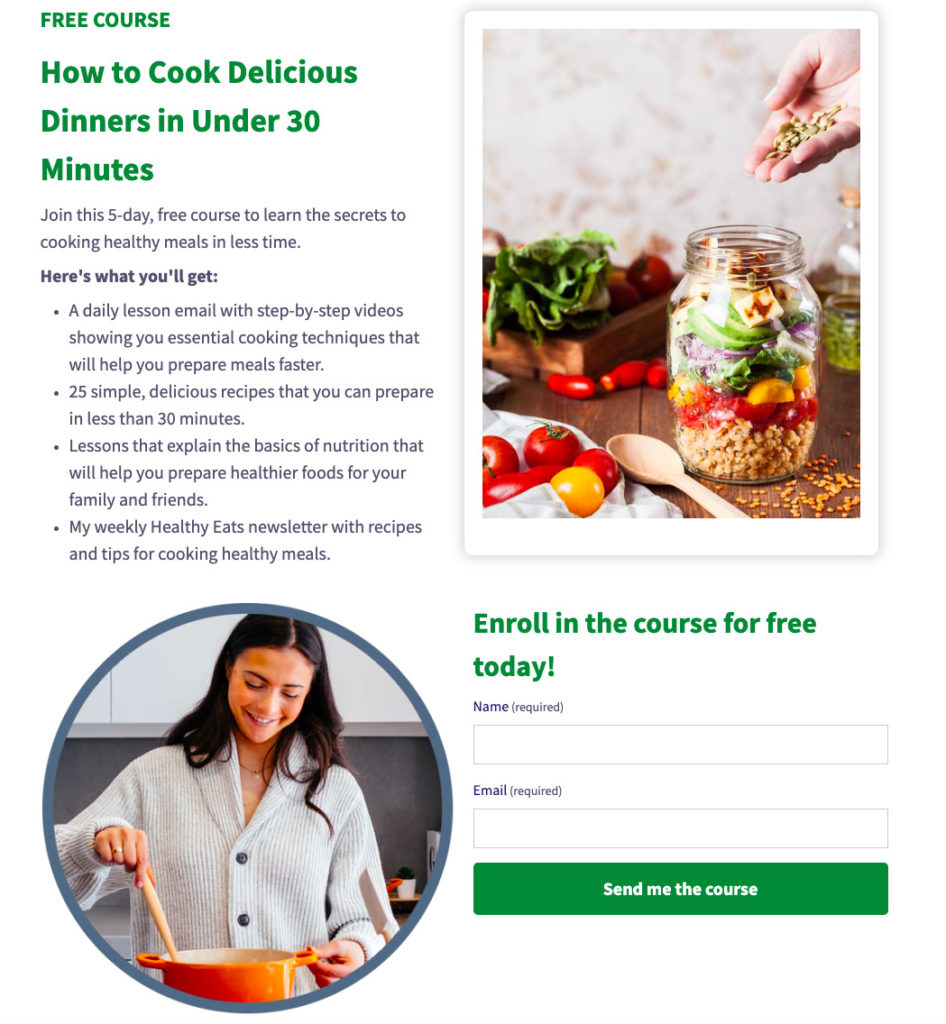
In the example above, a visitor who gives you their email address to receive a 5-day email course on cooking healthy meals is probably interested in learning how to cook healthy meals.
Birth month
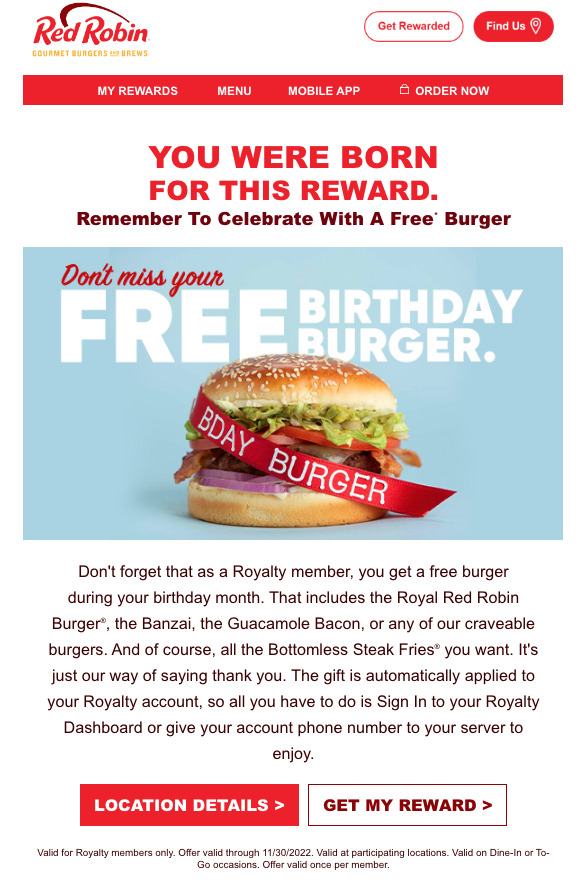
Most people love receiving birthday wishes. Send your subscribers a birthday gift or incentive during their birth month.
On your sign up form, ask subscribers to choose their birth month and set up custom fields to apply a tag based on their selection. Each month, send an email with a birthday gift to the corresponding group of tagged subscribers.
Check out the birth month email (and gift) RedRobin sends out celebrating their audience’s birthday. This is a great way to grow a loyal customer base.
Anniversary
You can also segment based on your subscriber’s milestones with your brand, like the date they joined or made their first purchase.
This segmentation enables you to send targeted emails with special offers, exclusive discounts, or heartfelt messages to acknowledge and appreciate their loyalty.
Language
If you have subscribers from different countries around the world, you might assume that their native language is different from your own. As a result, you can segment these subscribers and send emails in their preferred language.
Whether you segment and tag subscribers based on their geographic location or ask them for their language preference in the sign up form, you can easily deliver content that’s accessible to everyone.
New customer
Automated welcome emails are great for engaging your new subscribers. But you can also create segments of new subscribers and send targeted broadcasts to invite them to new-customer events, webinars, and more.
Long-time subscribers
According to Motista, customers who form an emotional connection with your business have over 300% higher lifetime value than those who don’t.
Reward your most loyal subscribers. Create a segment of long-time subscribers and thank them for their loyalty. Offer them VIP perks, invite them to special loyalty events, get to know them, and gather feedback from them.
Marketing funnel location
By tracking where subscribers are in the marketing funnel from awareness, consideration, or decision-making, you can create segments that cater to their specific needs and interests.
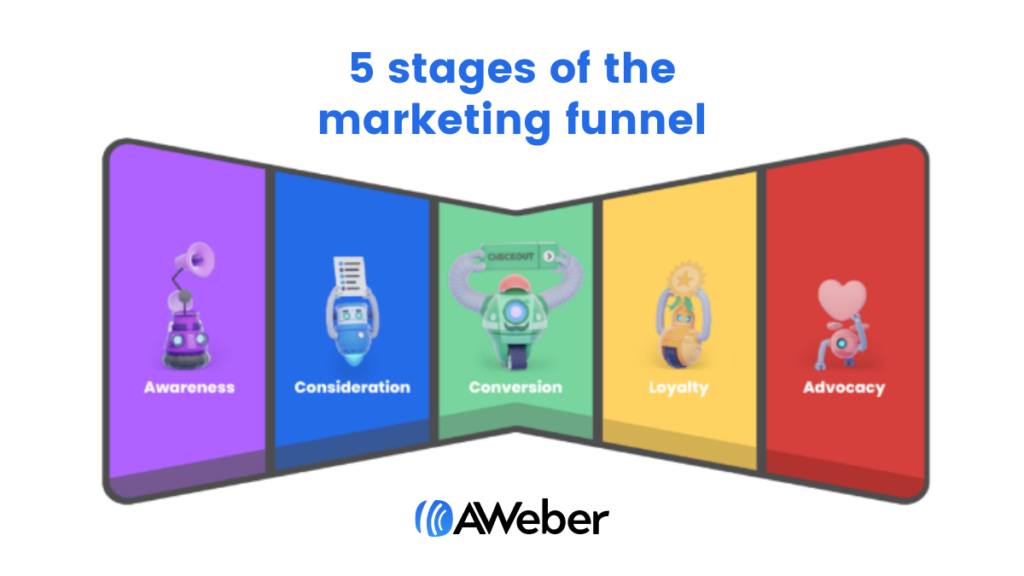
For example, you can send educational content and informative resources to those in the awareness stage, personalized recommendations or case studies to those in the consideration stage, and promotional offers or testimonials to those in the decision-making stage.
Preference
Capturing information about your subscribers on your sign up form is a great place to start with email segmentation. By asking them questions right away, you’re better able to address their needs from their first touchpoint.
For example, if you’re a healthy food blogger, you can create segments based on dietary preference (i.e. vegetarian, vegan, dairy free, etc.). You can do this by asking subscribers to select an option when they sign-up to your list or linking out in your welcome email.
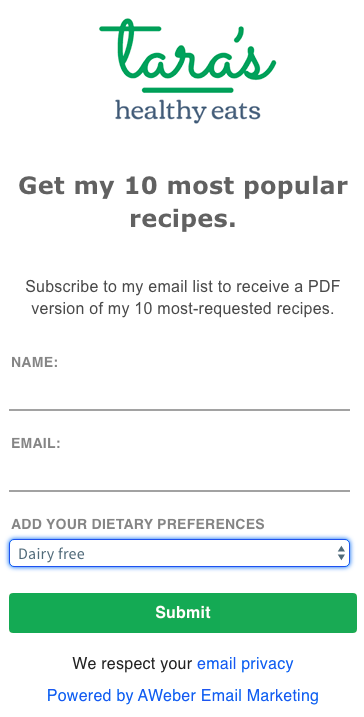
When a subscriber selects “dairy free” as their dietary preference, they will receive a tag indicating that characteristic.
In AWeber and other reputable email service providers, email tags serve as a label, letting you organize and categorize your contacts. You can’t talk about segmentation without talking about tags.
In the example below, you can see how to search for and create a segment of “vegan” subscribers based on whether they have the tag “vegan.”
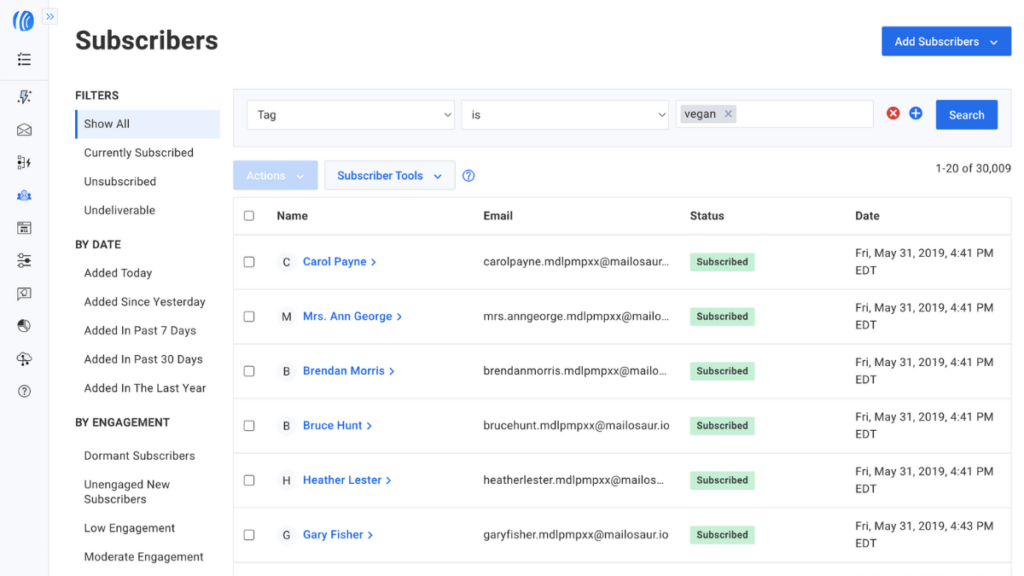
Segment subscribers. Send more relevant emails.
Sending targeted emails to subscriber segments is a proven way to improve your email engagement and ROI. So what are you waiting for?
This post only listed some of the many ways in which you can segment your list, but if you have other plans to segment subscribers, we’d love to hear about them in the comments below!


