AWeber Email Marketing Tips
Custom Email Templates: Save It Once, Use It Everywhere
![]()
Earlier this year we announced a new message editor that’s available in all accounts. We’ve been continuing to work on it to make it better and better based on customer feedback.
The new editor has been great for our core customers: small business owners who don’t necessarily have the HTML skills they need to create the messages they envision. The drag-and-drop interface makes it easy to add images, buttons, text blocks and more. What’s more, you can play with different themes even after you started adding your own content.
So maybe you drag-and-drop items in and make your perfect template. What happens when you want to use that template again? Or what if you made a broadcast message and want to use the same template for a follow up message? Or for a different list?
Solutions To Your Problems
The template manager now allows you to save any message you create as a template:

This means no more copying and pasting HTML code in different sections! It’s all there no matter what type of message you’re creating.
But there’s more.
That template will also be available in all your lists.
So you create a broadcast in one list, save it as a template, and that template is now available in all your lists for both follow ups and broadcasts.
How Do I Do This?
It’s really easy! You just need to:
2. Click on the “Templates” button to choose a template or access the save option.
Want Your Own Custom Template?
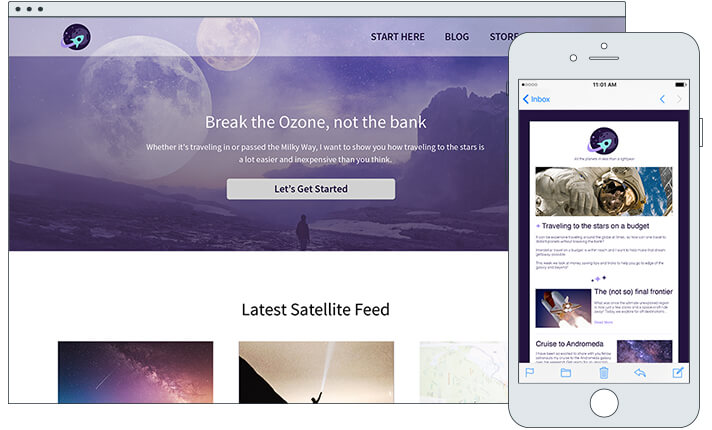
You can actually have a designer load a custom-built template right into the template manager, and then load it up – for any list – to type in your message and upload your pictures.
That’s what happened for this frustrated baker, who was better at cooking up pies than cooking up custom designs:
Stay tuned – on Wednesday we’ll talk about the template manager’s more advanced features the designer you hire will love!
Print This PostRelated Articles
Become a Better Email Marketer
Subscribe to This Blog by Email11 Comments
-
Randall Magwood
I actually enjoyed the old message editor for creating new emails. It was so simple and straight-forward. I’ve had to adjust to the new format of creating emails, but I see that it doesn’t affect me too much since I don’t write HTML emails – only text. But I tried the new interface once with an HTML email, and I was impressed. It was easy, and the templates made my emails stand out.
10/15/2012 5:47 pm -
I am a designer and webmaster for my client at Rock Solid Investments. I want to design my own custom template but I cannot find how to do that. I know how to take an aweber template and save one I have used as a new template but I want to design my own from scratch with my own images and colors, etc, then save it to the template loader and be able to use it. Can I do this and still have the drag and drop features? and how? Basically, how can I get into the core html?
Jessica
10/16/2012 1:25 pm -
oh!!!!!!!! thanks! I have been using the old editor bacause I must copy html, so I can use new editor.
Thanks a lot!
10/16/2012 3:53 pm -
I have been longing for this feature – will be so much easier to set up custom email templates for my clients to use.
Thank you so much for being so responsive!
10/16/2012 7:52 pm -
Looks like nice progress for the templates functionality, well done!
The reason we still sticking to pasting in HTML each time is to have our links automatically tagged for Google Analytics before pasting the HTML into your email creator.
So I’d like to just register a request to have an automated Google Analytics link tagger developed. We do know about your customer analytics, but we prefer having sales information tracked along with all other traffic info in Analytics.
10/17/2012 12:38 pm -
Jessica – Yes, you can! Check out today’s post for details.
Eoin – Great suggestion, I will pass that along.
10/18/2012 7:58 am -
WOW I just want to say thank you for this new way and that you can save you on temp now i was hoping you will do that in now you did THX .
10/19/2012 3:36 pm -
Love the idea! It would be helpful, though, if you included with your instructions how to actually find your saved templates. I have no problems creating and saving them, but can’t use them because I haven’t found how to access them yet. (Yes, the solution is probably obvious, but it would still be nice if you included it in these instructions.)
3/2/2013 11:47 am -
Chandra, I apologize for the confusion. The second image in the post shows where the saved templates are, but we have since changed the look of the message editor. Templates are now over to the right. Once you click the “Templates” button there is a “My Templates” button underneath that where you’ll find your saved templates.
3/4/2013 8:29 am -
I love the fact that I can make my own templates but I’m wondering if these custom templates I’ve made are available for the blog broadcast. If so where do I find them and how do I implement them?
6/12/2013 12:29 am
Thanks, -
Colby – The custom templates are not currently available for blog broadcasts. I will certainly pass that along though!
6/12/2013 7:37 am
Leave a Comment
Follow Comments
